Your dashboard page
The private web page: update times, pause, which launchers and games are in use, accounts and language.
Updated 2026-10-03
What it does#
Your dashboard is the web version of everything the bot can tell you, plus the settings the bot cannot ask for in a chat. It shows what is current, what needs you, and every switch that belongs to your cafe.
How to use it#
Send /dashboard and the bot replies with a private link. Ask for a fresh one any time.
Important: The link is yours for seven days. Do not forward it - anyone holding it can change this cafe's settings.
The page opens on Overview: what needs you, when it runs next, the update buttons, and the games on the right - problems first, then the launchers that are fine.
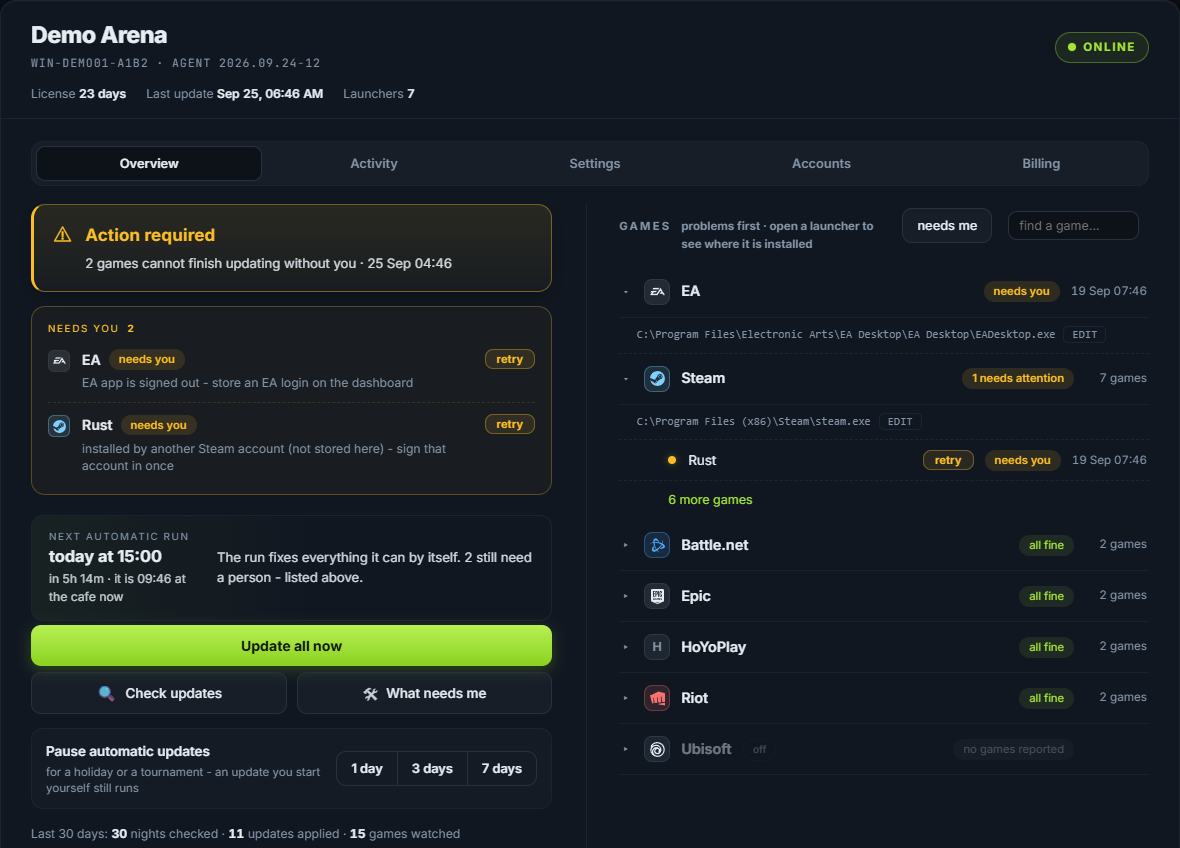
Each launcher folds open to show its games and where it is installed. Use find a game to jump straight to one, and needs me to see only the problems:
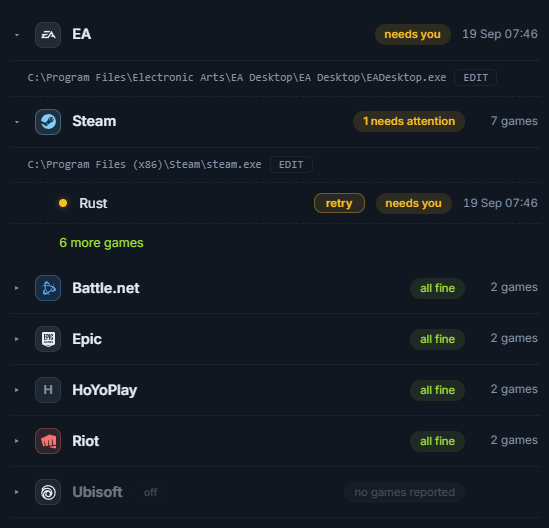
What you can do on Overview:
- Pause for a day, three days or a week, and resume.
- Launchers in use. Switch off a launcher this cafe does not have, and it stops being opened and stops being reported.
- Games marked "not here". A game that is listed but is not really installed can be hidden; it then costs no time and raises no rows.
- The cafe name (the rename button at the top), which prefixes every message the bot sends about this server.
Settings#
Every setting is applied at the cafe within a minute of Save settings. The next run uses it.
Update times#
On the cafe's own clock. The first time is the nightly (07:00 unless you change it); add more, comma-separated, for checks during the day - for example 07:00, 13:00, 19:00.
Language#
The language of this page and of the bot's messages to you. Messages the cafe server writes itself stay in English.
Update as soon as another cafe finds a new version#
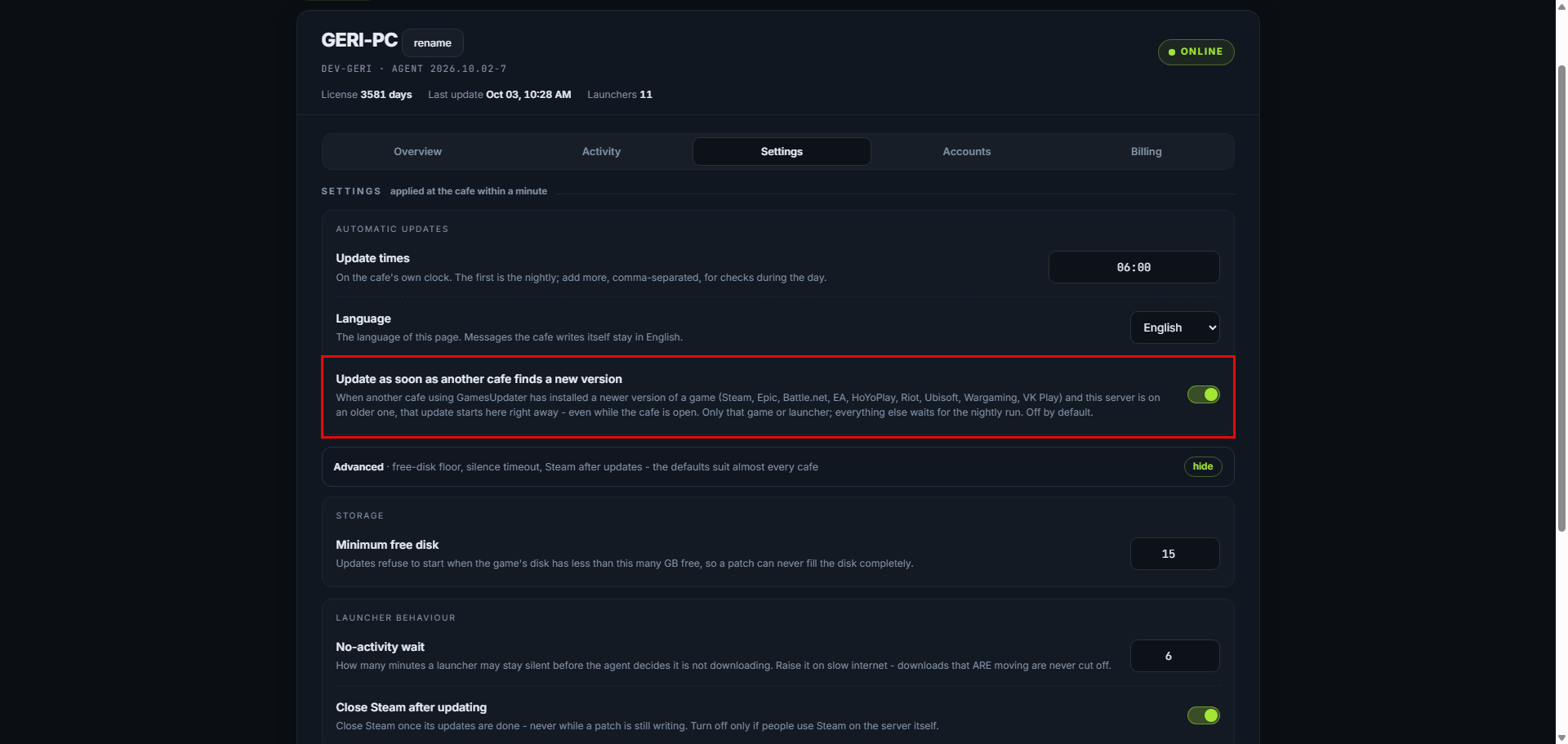
Off unless you turn it on. When another cafe using GamesUpdater has installed a newer version of a game (Steam, Epic, Battle.net, EA, HoYoPlay, Riot's League of Legends, Ubisoft, Wargaming, VK Play) and this server is on an older one, that update starts here right away - even while your cafe is open. Only that one game (Steam) or that one launcher starts; everything else waits for the nightly run. At most 8 such starts a day, and never while the cafe is paused.
Leave it off if your cafe must never download during opening hours. Turn it on if being on the newest version the same day matters more than the bandwidth.
Advanced#
Folded under show. The defaults suit almost every cafe.
Minimum free disk (Storage). Updates refuse to start when the game's disk has less than this many GB free (15 unless you change it), so a patch can never fill the disk completely.
No-activity wait (Launcher behaviour). How many minutes a launcher may stay silent before the updater decides it is not downloading (6 unless you change it). Raise it on slow internet. A download that IS moving is never cut off by this.
Close Steam after updating (Launcher behaviour). On unless you turn it off. Steam is closed once its updates are done - never while a patch is still writing. Turn it off only if people use Steam on the server itself.
Windows auto-login#
Shown only when the server has it off. Nothing is wrong - updates work normally. But if the power goes out, Windows comes back to its login screen and the updater cannot run until somebody signs in on the server. Turning auto-login on is optional and is done on the server, not on this page.
Accounts holds the launcher logins the updater may use - see Launcher accounts and Sign-ins and security codes.
Billing shows your plan, when the licence ends, and the pay buttons. See Licence and renewal.
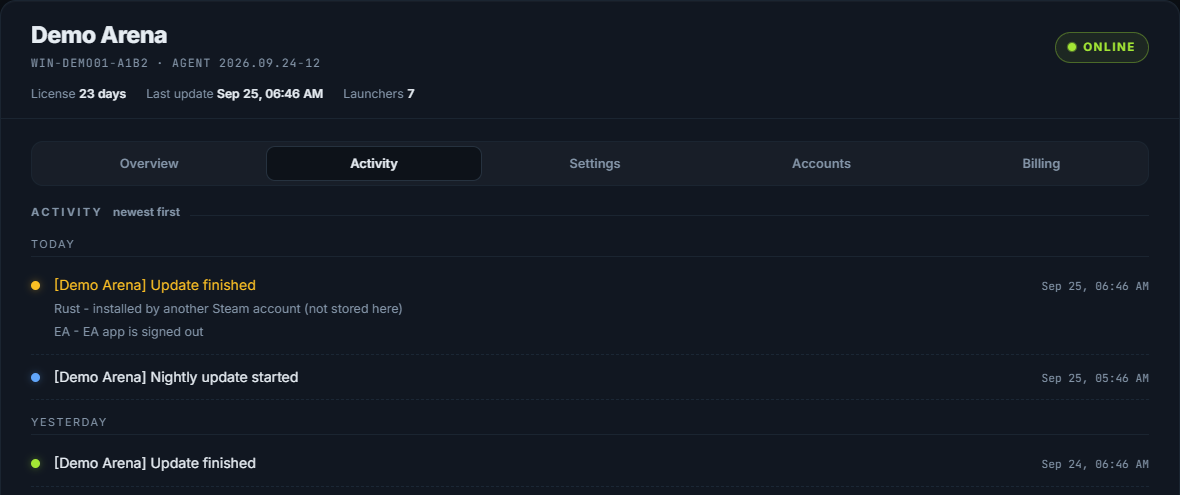
Activity is the history of this server: every run, every version it took, newest first.
If your Telegram is connected to several cafes, each one is a tab at the top of the page, and /dashboard asks which one you mean.

What the reply means#
The page opens on what matters: anything that needs you first, then the games grouped by launcher, with what each is on and when it last changed. "Current" means the version on disk matches what the store or the rest of the fleet reports.
When something needs you#
- The link stopped working. They expire after seven days. Send /dashboard again.
- A setting you changed did not take effect. Settings are copied to the server on its next contact, within a few minutes. The next run uses them.